Before you begin
Turn Quaternius's Sword_Block clip into an animation replacement for the male FATE player. This walkthrough ends with a script mod you can enable in Reborn 0.3.0.
We use the existing IDLE role so you can watch the result while standing still. Sword_Block briefly raises a guard and returns to neutral, then repeats. It changes the animation only; it doesn't add a block button or new combat behavior.
What you need#
You'll need:
- Reborn 0.3.0 with an owned FATE installation selected.
- Blender 5.3.0, the version used for this walkthrough.
- The free Standard download of Universal Animation Library 2 ↗. Extract it first.
- The player animation Blender helper. Extract the whole ZIP and keep its files together.
The helper supplies the bone mapping, bakes the movement, and packages the result. You run it inside Blender; it needs no account, extra add-on, terminal commands, or Reborn source files. The included preset supports the original male FATE player. Female characters and other rigs need separate mappings.
Use a new test character while trying the mod. Reborn tracks enabled mods in saves, so changing the mod list can ask you to load a separate copy.
Export the player references#
- Open Reborn and choose Mods > Modding Tools > Asset Browser.
- Select FATE and choose Male reference kit.
- Choose a new output folder outside your game installation, then click Export selected.
- Check the export report. Keep all four reference folders together inside the output folder.
The kit contains lower.sms, upper.sms, head1.mdl, and hair1.mdl. Each exported folder should contain reference.glb and reference.json. Keep the JSON files beside their GLBs; the helper uses them to identify the original parts.
Keep these original-game references private. The finished animation mod won't contain their meshes or textures.
Open the Blender helper#
- Start a new Blender file. In Object Mode, choose Select > All, then Object > Delete to remove the default objects.
- Change one area to Text Editor using its editor-type button, or switch to the Scripting workspace.
- Choose Text > Open and open player-animation.py from the extracted helper folder.
- Click Run Script, the triangle in the Text Editor header.
- Return to the 3D Viewport and press N to open its sidebar. Select the FATE Animation tab.
The panel has four numbered buttons. You don't need to change Blender's automatic script execution setting. After reopening your working file, open and run the helper again to restore the panel.
Import and remap Sword_Block#
- Click Import player references. Choose the parent output folder containing all four exported reference folders, then confirm the folder selection.
- Save a working .blend copy before importing the source animation.
- Click Import UAL2 Standard GLB. Choose Unreal-Godot/UAL2_Standard.glb from the extracted animation pack. Use the file without _RM in its name.
- Click Remap Sword_Block. The helper bakes frames 0-30 at 24 fps and hides the source mannequin.
- Select one of the FATE meshes in the Outliner and use View > Frame Selected. Play or scrub the timeline to inspect the player from the front and side.
- Save another .blend copy with the remapped action.
The character below was rendered from this workflow's baked player animation. It is a Blender preview; the installation check comes later.
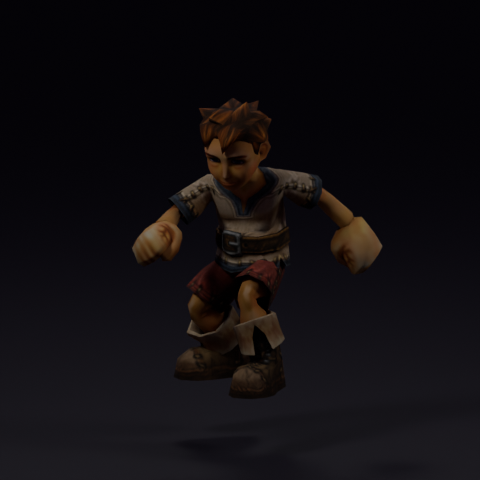
Leave the player's bones, rest poses, weights, object transforms, and body-part alignment unchanged. You can adjust the baked pose keyframes before export, but keep shared upper/lower joints aligned. Check the shoulders, wrists, feet, and weapon grip. This helper doesn't lock feet to the floor or fit the hands to a particular weapon.
Export the animation mod#
- In the FATE Animation panel, click Export IDLE replacement mod.
- Choose a new parent output folder outside the game installation and confirm.
- Open the newly created FateSwordBlockIdle folder. It should contain mod.json, main.gd, README.txt, an empty Data folder, and animations/male-idle.rbanim.
The helper creates the manifest and script entry for you. Keep the entire folder together. It refuses to overwrite an existing FateSwordBlockIdle folder; use a new output location when exporting another revision.
You don't need Blender's glTF export dialog for this step. The .rbanim file carries the motion and attachment transforms that Reborn's animation override reads. A preview GLB or model_overrides entry alone won't install this animation.
This is a Reborn script mod using an existing animation role. The walkthrough doesn't export a legacy DAT/SMA animation replacement. See Reborn script modding for the package structure.
Install it in Reborn 0.3.0#
- In Reborn, open Mods and click Open Mods folder.
- Copy the whole FateSwordBlockIdle folder into that folder. Open your copied folder and check that mod.json is directly inside it, without another nested FateSwordBlockIdle folder.
- Return to Reborn and click Refresh.
- Enable Sword Block Idle. For the first test, keep other animation replacement mods disabled.
- Click Apply changes, then Restart now.
- Start a new male character using the FATE core and enter Grove.
Stand still to watch Sword_Block repeat as the IDLE animation. Walk a few steps and stop again: walking keeps its normal animation, then the replacement resumes when the character is idle. The clip doesn't provide a sword or shield; equipped items remain attached to the character's hands.
While the character is loaded, open Extensions, select Sword Block Idle, and click Refresh. The panel should say Applied to IDLE. Save and Exit, then Continue Game to check it after reloading.
Disable it or share your mod#
To restore the original idle, open Mods, disable Sword Block Idle, click Apply changes, and restart. When continuing a save made with it enabled, review the changed-mods prompt and choose Load separate copy. Reborn keeps the original profile. Re-enable the same mod configuration if you want to continue that original profile instead.
For sharing, change the example ID, display name, and author in mod.json so your package has its own identity. Zip the whole mod folder, including its empty Data folder. Share only your finished mod, not the exported player reference kits or original game assets.
Credit Quaternius for the source motion. The animation pack is CC0; rights to FATE artwork remain separate. The helper includes its source and license.
Quick fixes#
- The helper can't find the player kit: select the parent folder containing all four reference folders. Keep every reference.json beside its GLB.
- The preset doesn't match: use the original male FATE references exported by 0.3.0. Don't substitute female parts, armor, or a modified rig.
- A source or remap is already loaded: reopen the saved copy from before that step. Don't import the pack or remap twice in the same scene.
- Export reports changed geometry or rig data: return to the untouched reference copy and repeat the remap. Don't resize or rotate the player objects.
- Shared body joints disagree: undo edits that move the upper and lower copies of a shared joint differently, or reopen the unedited remap.
- The mod doesn't appear: check for an extra nested folder, then Refresh. The folder directly inside Mods must contain mod.json.
- The status isn't Applied to IDLE: load a male FATE character, confirm the mod is enabled, and restart after applying changes. Female characters keep their original animation.
- The motion differs from Blender: the game fits it to the existing role's timing. This example loops a short guard clip as IDLE; it isn't a polished idle or a new combat action.
Credits and verification#
Source animation by Quaternius, from Universal Animation Library 2 ↗.
Tested with Blender 5.3.0, the free Standard GLB, player reference kits exported by Reborn 0.3.0, and the released 0.3.0 Windows runtime. The generated mod loaded without mod errors or warnings, reported Applied to IDLE on a new male FATE character, and remained active after saving and reloading. Disabling it and restarting restored the original animation through the separate-save-copy flow.
This verifies the male FATE IDLE example. Female variants, other roles, legacy animation exports, and new animation types aren't covered here.
No chapters match that search. Try a different word or clear the search.